User guide
Everything you need to get going with Qimtar, in the order you use it.
Getting started
Qimtar runs in the browser, on a computer or a phone.
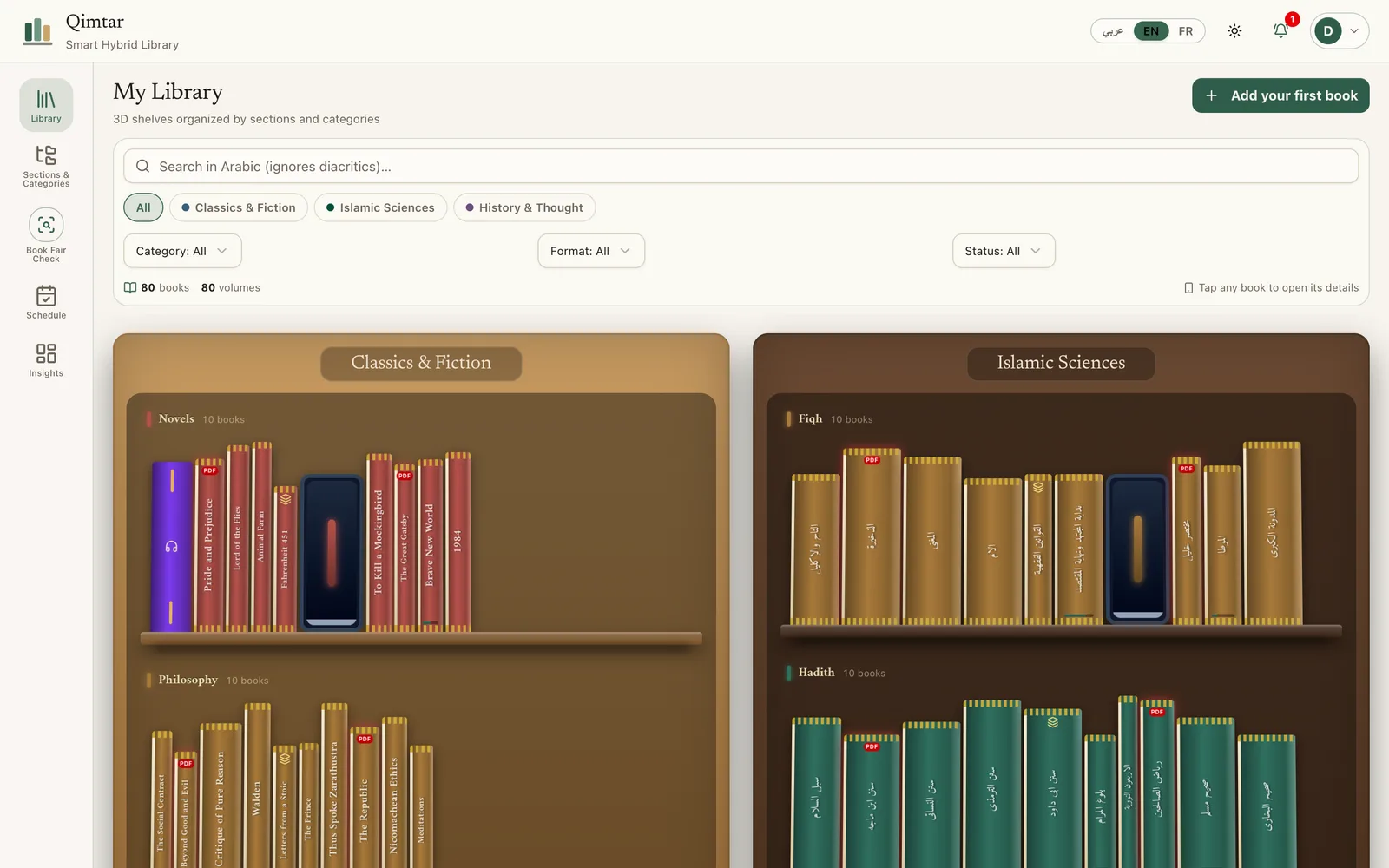
- 1Open the app and create an account with your e-mail and a password of at least 8 characters.
- 2Pick the language at the top right: Arabic, English or French. The interface flips right to left in Arabic.
- 3The sun button switches between light and dark themes. By default Qimtar follows your device setting.
- 4On a phone, add Qimtar to the home screen from the browser menu to open it like an app.
Organize with sections and categories
A section is a broad field, a category is a division of it.
- 1Open “Sections & Categories”.
- 2Create a section (for example “Sharia sciences”) with its names in Arabic, French and English and a color.
- 3Add categories inside it (“Maliki fiqh”, “Usul al-fiqh”). A category can have a parent.
- 4Each section becomes a bookcase in the library, and each category a shelf row.
Add a book
The form only requires a title and a category.
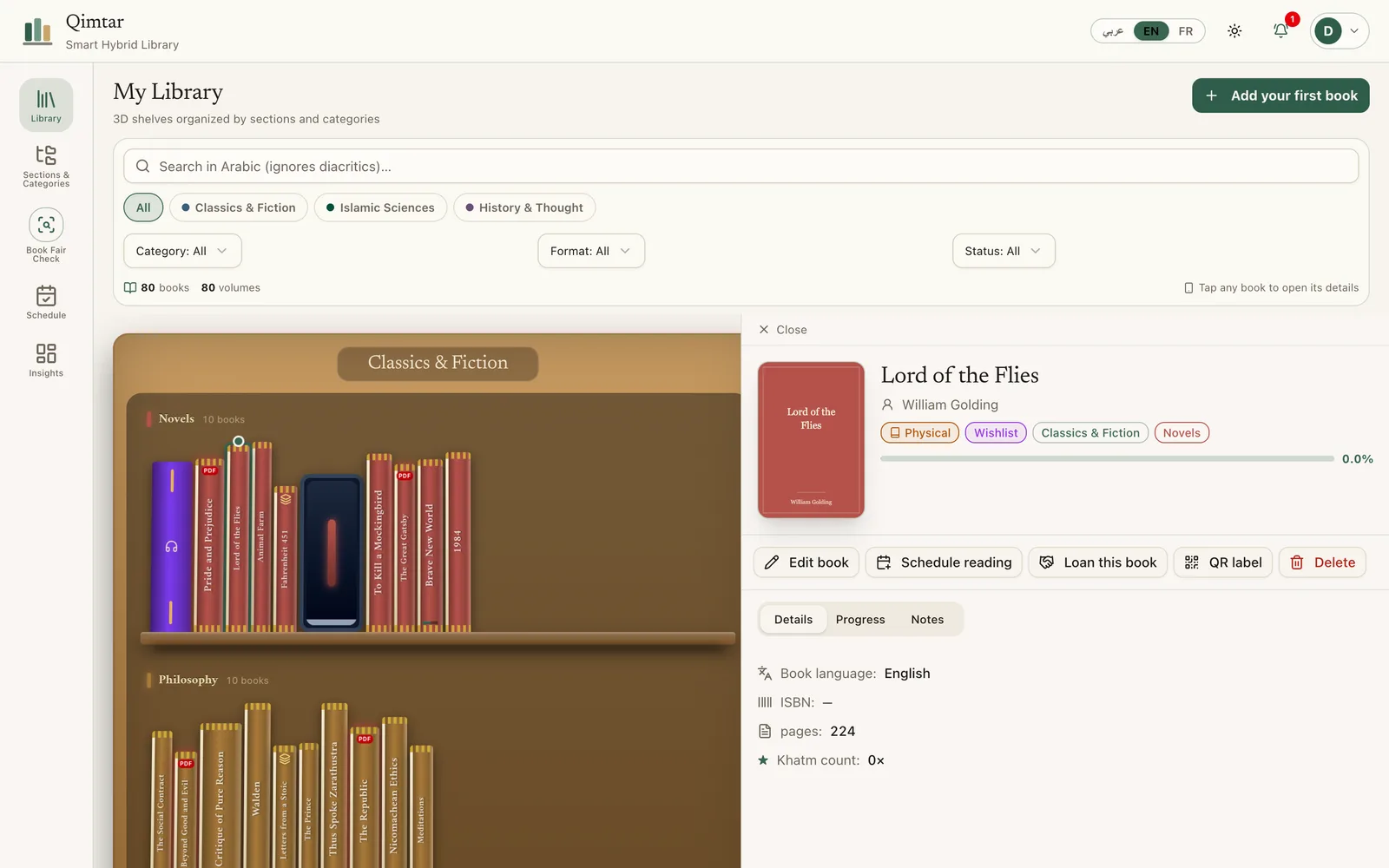
- 1In the library, tap “Add”.
- 2Enter title, author, editor (muhaqqiq), publisher, language and ISBN. From the title, Qimtar suggests a category.
- 3Pick the format: paper, PDF, Kindle, EPUB, audiobook, or paper and digital.
- 4For a multi-volume work, give the number of volumes, those you own and the pages of each.
- 5Add a cover photo and a spine photo: the spine is what shows on the shelf.
Read at a pace
The reading plan turns a finish date into today's number.
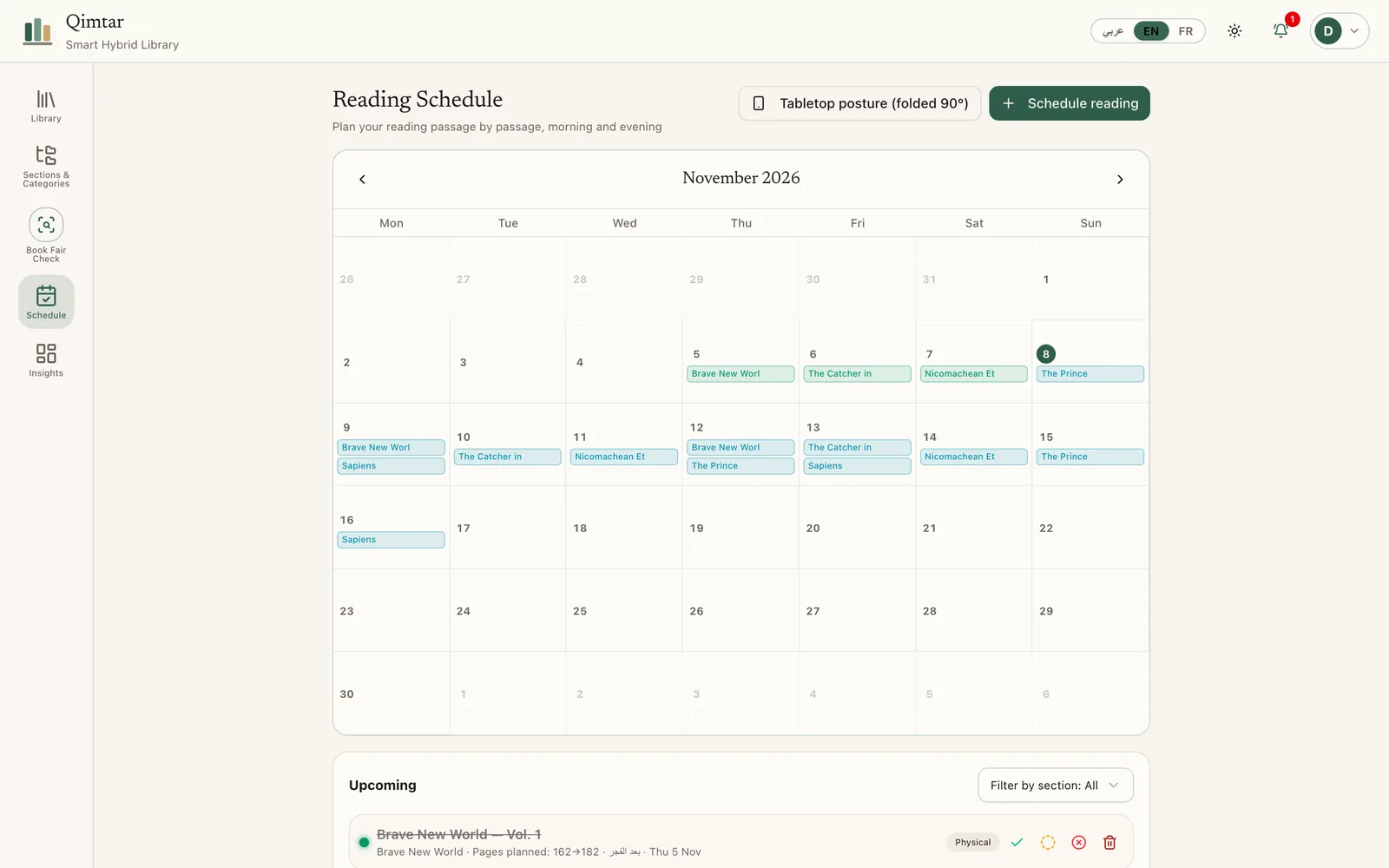
- 1Open the book page, then “Schedule a reading”.
- 2Enter start and end pages, the date and the slot (after Fajr, evening or a set time).
- 3The calendar shows morning and evening readings. You can complete, move or delete each one.
- 4To finish a book by a date, enter the number of days: Qimtar works out pages per day and recalculates after every session.
- 5You can mark only part of today's reading as done.
- 6The reading timer has a “Tabletop” posture for a phone folded at 90°.
Write fawa'id
A notebook for each book, tied to pages.
- 1On the book page, open the “Notes” tab.
- 2Write what you understood and enter the page.
- 3Notes stay with the book, ready when you read it again.
Read a PDF in the app
Attach a PDF to a book to read it without leaving Qimtar.
- 1On the book page, attach a PDF (9 MB maximum, PDF files only).
- 2The file is stored on the server and visible only to you.
- 3The reader shows one page on a phone, two pages on a wide screen or an unfolded foldable.
- 4The page where you stop updates the book's progress.
- 5You can replace or delete the PDF at any time.
Check a book at the book fair
Before buying, an answer in seconds.
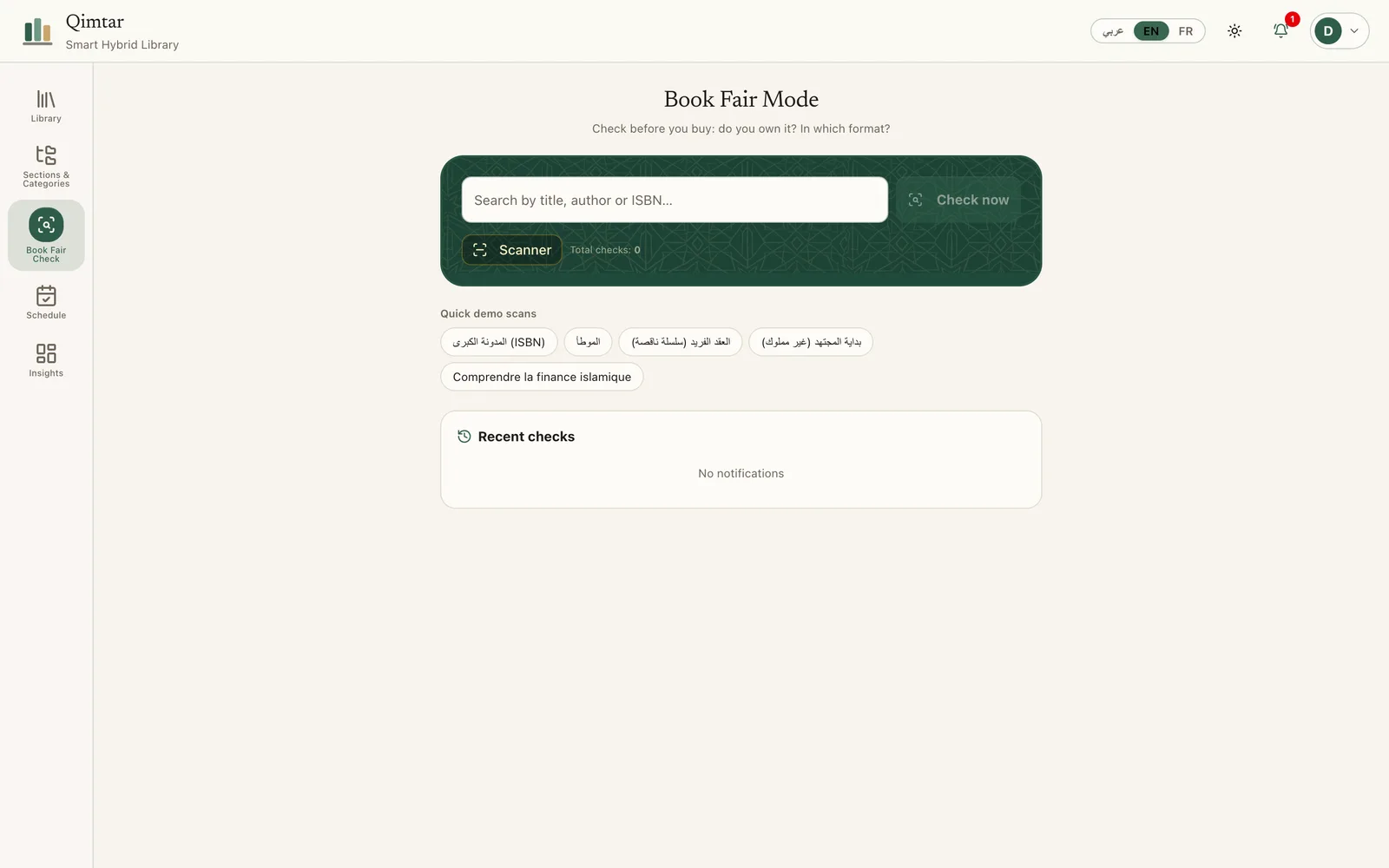
- 1Open “Fair check”.
- 2Type a title, an author or an ISBN.
- 3The answer is one of four: owned in paper, owned in digital, series incomplete (with the missing volumes), or new.
- 4Each check is kept in the history.
Lend a book
Know to whom, and since when.
- 1On the book page, “Lend this book”.
- 2Enter the borrower's name and, if you want, a phone number.
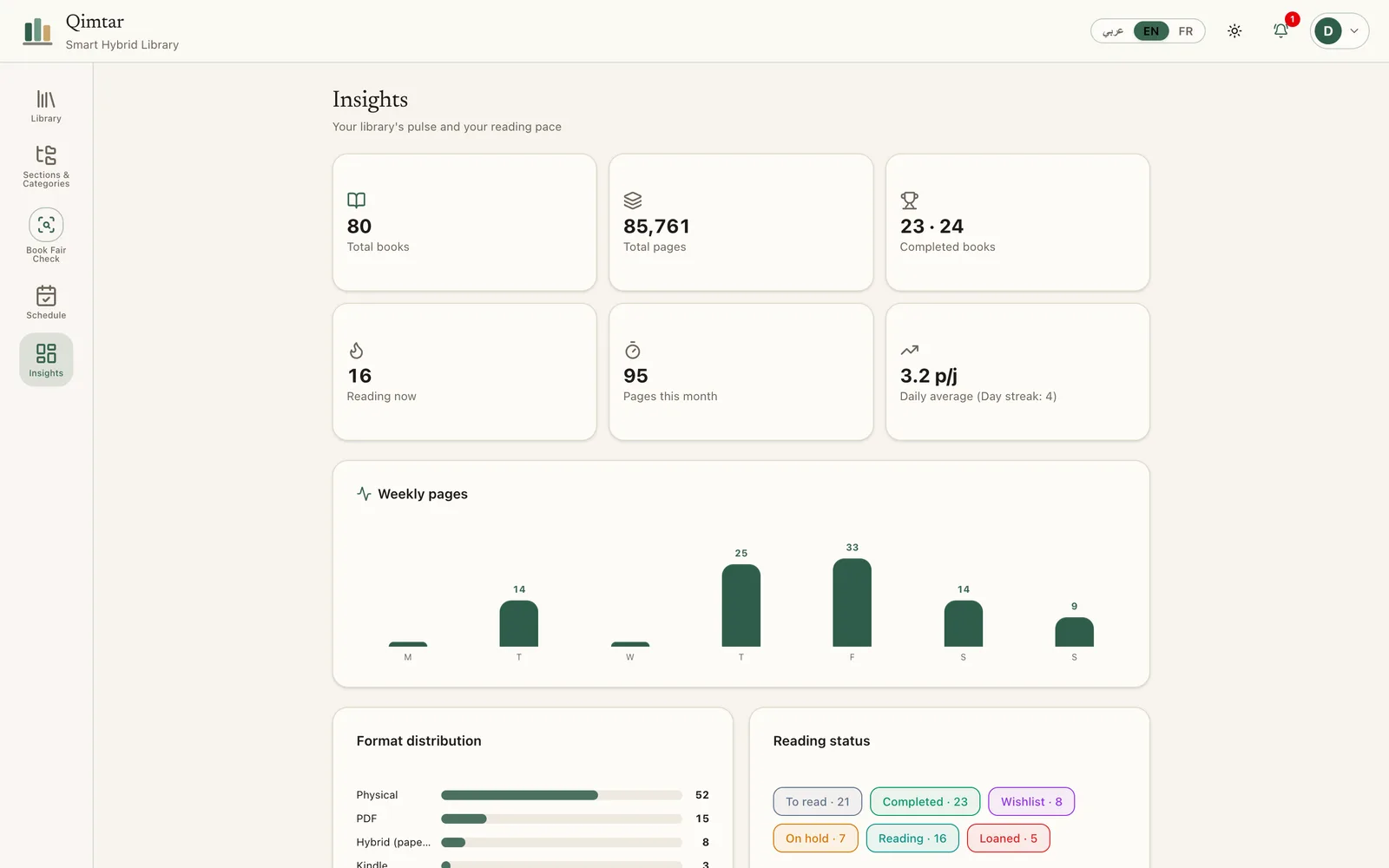
- 3The book moves to “Loaned” and appears in the loans list in the statistics, with a WhatsApp link.
- 4When it comes back, set it back to a normal status.
Print QR labels
A label per book to open its page with a scan.
- 1On the book page, “QR label”.
- 2Qimtar builds a sheet of labels to print as a PDF.
- 3Stick the label on the book or on the shelf.
Export your data
Your library is yours.
- 1Open the settings.
- 2Choose JSON export (everything, for backup) or CSV (for a spreadsheet).
- 3The file downloads to your device.
Foldable phones
Layouts adapt to the width of the screen.
- 1Cover screen or a regular phone: one column, navigation at the bottom.
- 2Unfolded screen (Google Pixel Fold, OnePlus Open, Galaxy Z Fold): side navigation, library and book page side by side.
- 3The PDF reader shows two pages as soon as the width allows.
- 4In Tabletop posture (folded at 90°), the calendar puts the reading timer in the lower half.
Frequently asked questions
What is Qimtar?
Qimtar is a personal library on the web. You shelve your paper, PDF, Kindle, EPUB and audio books, follow your reading page by page, and check in seconds whether a book is already at home.
What does “قمطر” mean?
In Arabic dictionaries, a qimtar is a case or chest in which books are kept. That is what the app aims to be: a place where books are stored, protected and easy to find.
Do I need to install anything?
No. Qimtar opens in your browser. On a phone you can add it to the home screen (browser menu, then “Add to home screen”) and it opens like an app from then on.
Can I read my PDFs inside Qimtar?
Yes. From a book's page you attach the PDF (9 MB maximum per file). It is stored on the server and only visible to you. The reader shows one page on a phone and two pages side by side on a wide screen or a foldable, and updates the book's progress to the page where you stop.
How does the reading plan work?
You say in how many days you want to finish a book. Qimtar divides the pages left by the days left and gives you today's number. If you miss a day, the number rises a little instead of the plan collapsing. You can mark just part of today's reading as done.
Does search understand vocalized Arabic?
Yes. Search ignores short vowels and letter variants (alif with hamza, ta marbuta, alif maqsura), so “الإحياء” and “احياء” find the same book. It searches title, author and editor (muhaqqiq).
How do I avoid buying duplicates at a book fair?
Open “Fair check” on your phone and type a title, an author or an ISBN. Qimtar answers: already owned in paper or digital, series incomplete (with the missing volumes), or new to you.
Is my data private? Can I take it with me?
Each account only sees its own library. Your PDFs are readable by you alone. You can export your library as JSON or CSV from the settings.
What does Qimtar do with Kindle, EPUB and audio books?
It lists them: record, cover, progress and notes. It does not open those files. Only PDF reading is built in.
Does it work on foldable phones?
Yes. On a wide screen such as the inside of a Google Pixel Fold or a OnePlus Open, the library and the book page sit side by side and the PDF reader shows two pages. On a cover screen everything stacks in one column. A “Tabletop” posture for the reading timer exists for a device folded at 90°.
How do I lend a book without forgetting it?
On the book page, “Lend this book” records to whom and since when, with a phone number if you want. The book then appears in the loans list in the statistics, with a WhatsApp link to remind the borrower.